


 {{
storeProfile.user ? 'Hi ' + storeProfile.user?.givenName + ' !' : 'Log In'
}}
{{
storeProfile.user ? 'Hi ' + storeProfile.user?.givenName + ' !' : 'Log In'
}}
 {{getNumberItemInCart}}
{{storeProfile.user ? 'Hi ' + storeProfile.user?.givenName + ' !' : 'Log In'}}
{{getNumberItemInCart}}
{{getNumberItemInCart}}
{{getNumberItemInCart}}
{{getNumberItemInCart}}
{{storeProfile.user ? 'Hi ' + storeProfile.user?.givenName + ' !' : 'Log In'}}
{{getNumberItemInCart}}
{{getNumberItemInCart}}


 Auto Services
{{selectedServiceName}}
{{storeProfile.user ? 'Hi ' + storeProfile.user?.givenName + ' !' : 'Log In'}}
Auto Services
{{selectedServiceName}}
{{storeProfile.user ? 'Hi ' + storeProfile.user?.givenName + ' !' : 'Log In'}}

 {{storeCurrentStoreInfo?.storeInfo?.city}}
({{storeCurrentStoreInfo?.storeInfo?.name}})
{{storeCurrentStoreInfo?.storeInfo?.city}}
({{storeCurrentStoreInfo?.storeInfo?.name}})
 {{storeCurrentStoreInfo?.storeInfo?.phone}}
Closes at {{storeCurrentStoreInfo?.storeInfo?.closingTime}}
Closed
Find a store location
{{storeCurrentStoreInfo?.storeInfo?.city}}
({{storeCurrentStoreInfo?.storeInfo?.name}})
{{storeCurrentStoreInfo?.storeInfo?.phone}}
Closes at {{storeCurrentStoreInfo?.storeInfo?.closingTime}}
Closed
Find a store location
{{storeCurrentStoreInfo?.storeInfo?.phone}}
Closes at {{storeCurrentStoreInfo?.storeInfo?.closingTime}}
Closed
Find a store location
{{storeCurrentStoreInfo?.storeInfo?.city}}
({{storeCurrentStoreInfo?.storeInfo?.name}})
{{storeCurrentStoreInfo?.storeInfo?.phone}}
Closes at {{storeCurrentStoreInfo?.storeInfo?.closingTime}}
Closed
Find a store location





No Stress with Point S


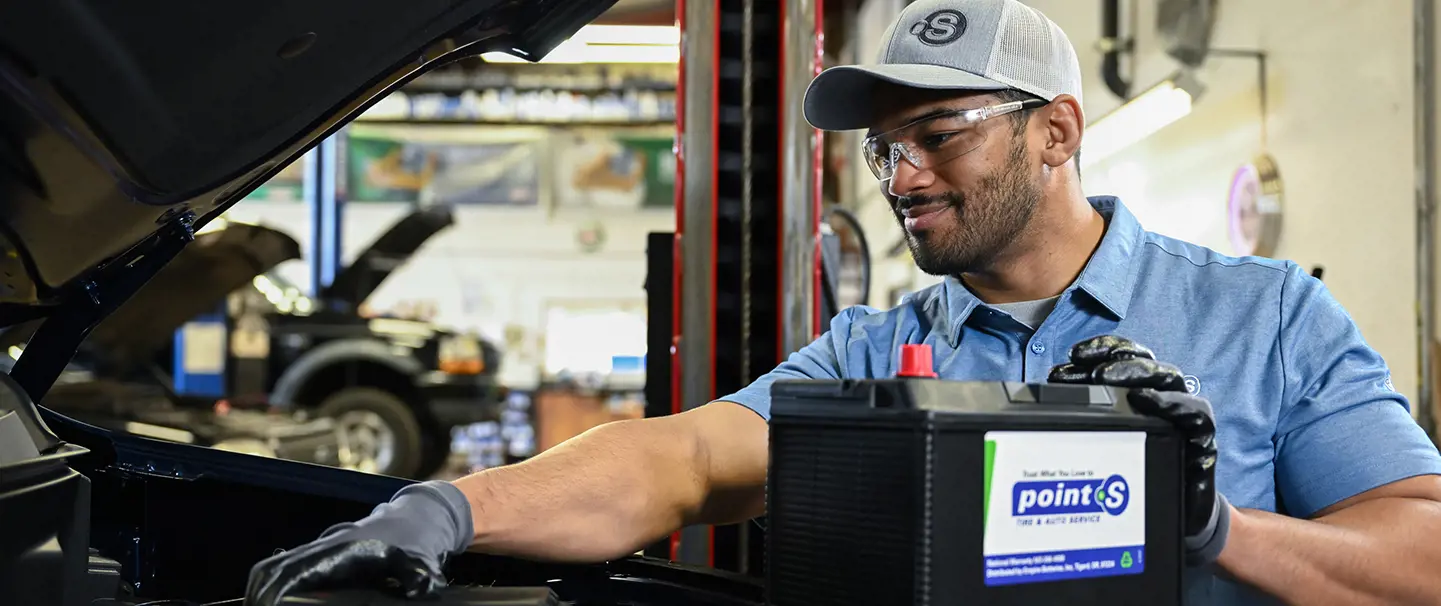
Batteries
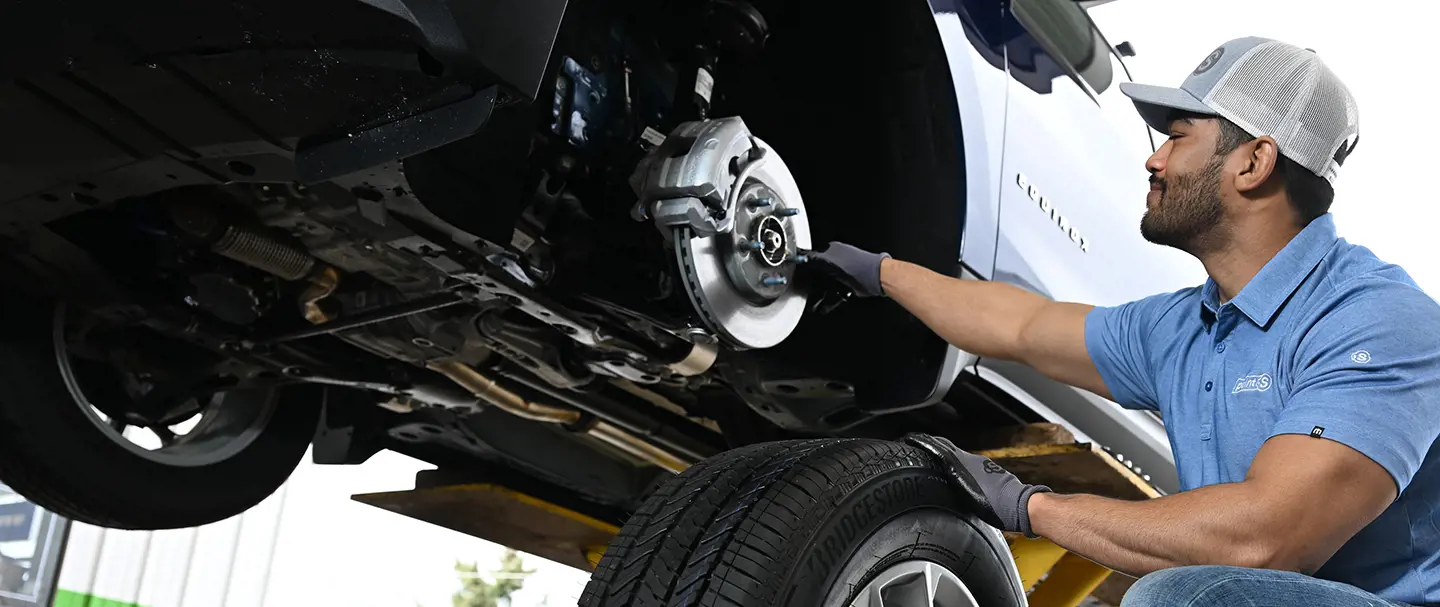
Brake Service
Engine Tune-Up
Oil Change
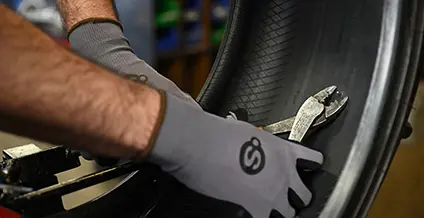
Tire Repair
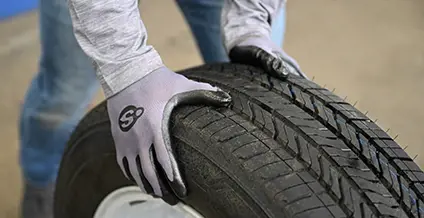
Tire Rotation
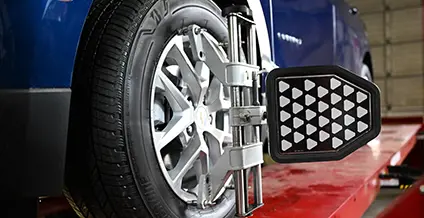
Wheel Alignment
Industry Best Tire Promise & Warranty
Your safety and comfort on the road are the top priority at every Point S store. With our Promise Plus Warranty protection, you get the best of both worlds: Quality you expect, backed by 250 local tire and automotive store owners, at the low prices you want. Visit your local retail Point S store today and find out why there is No Stress with Point S
 Promise Maintenance Plan
Promise + Warranty
Promise + AWD (All-Wheel Drive)
Promise + National Warranty (WA Only)


{{storeCurrentStoreInfo?.storeInfo?.name}}
{{storeCurrentStoreInfo?.storeInfo?.fullAddress}}
{{storeCurrentStoreInfo?.storeInfo?.phone}}




{{item.name}}
{{item.name}}
{{storeCurrentStoreInfo?.storeInfo?.name}}
{{storeCurrentStoreInfo?.storeInfo?.address1}}
{{storeCurrentStoreInfo?.storeInfo?.phone}}


Your message has been submitted!

Account management
{{getTile.title}}
 {{getTile.title}}
{{getTile.title}}

Protect Your Investment
Purchasing a warranty option for your tires offers invaluable peace of mind. It means that you're safeguarding your investment against unexpected damage, wear, or manufacturer defects that might occur during the tire's lifespan. With a tire warranty, you can often get replacements or repairs at little to no extra cost, saving you money in the long run. It's a smart way to ensure that you're driving on reliable, high-quality tires without worrying about unforeseen expenses should issues arise.
{{item?.listTireOrder[0]?.psBrandName}}
{{item?.listTireOrder[0]?.psProductLineName}}
Remove
-
{{ detailPremiumPackageItem?.name }}
{{ detailPremiumPackageItem?.value }}
See details
Hide details
{{ detailPremiumPackageItem?.name }}
{{ detailPremiumPackageItem?.value }}

{{ service?.value }}

See details
Hide details

Promise + Warranty Protection
We can protect your tire investment from unseen damage.Add
{{ item?.subtotal }}
{{ item?.savings }}
{{ item.saleTax }}
{{ item?.totalPrice }}
{{ promo?.discountCode }}
Remove